
Rebooting Windows with a scheduled task
Creating a scheduled task to reboot your Windows machine once a week or nightly may help avoid issues such as high CPU or ram, frozen applications, or older hardware that could benefit from frequent reboots.
Creating the scheduled task
- Logon to the machine with an account with admin rights
- Open Task Schedular → Action → Create Task
- In the GENERAL tab:
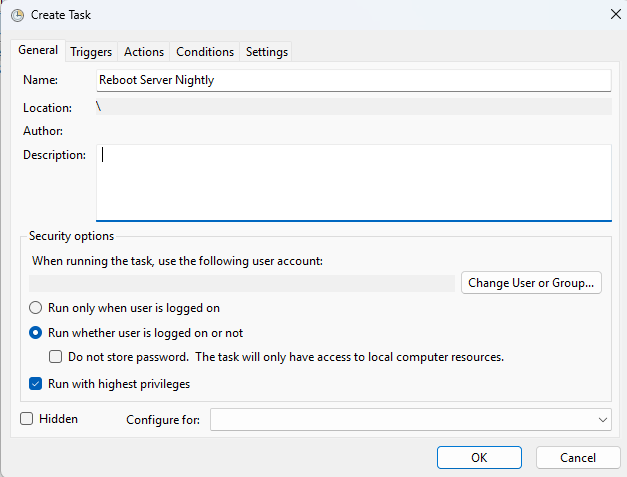
- Name: Reboot Server Nightly (or name it whatever you want)
- Author: Administrator
- Description: Reboot Server Nightly at #pm
- Security Options:
- Select: Run whether user is logged on or not
- Seelct: Run with highest privileges
- In the TRIGGERS tab:
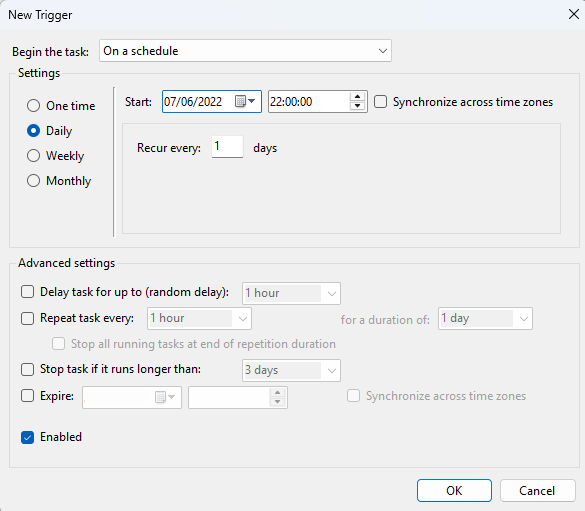
- In Settings, select Daily, and enter the desired start date/time.
- In Advanced Settings, make sure Enabled is slected at the bottom.
- In the ACTIONS tab:
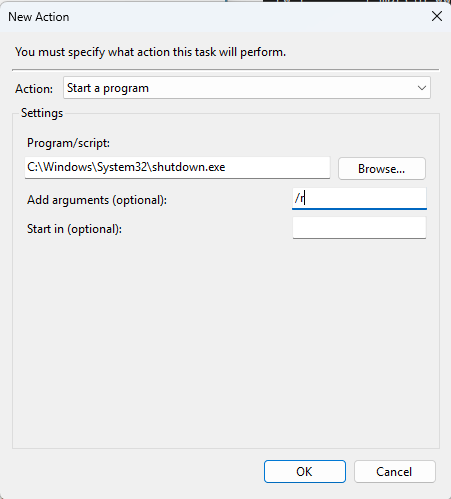
- Action: Start a program
- In "Program/script" field, enter c:\Windows\System32\shutdown.exe
- In "Add arguments (optional)" field, enter /r
- If you want to see the last time the server was rebooted, you can use the systeminfo command. For example:
systeminfo | find /i "Boot Time"
System Boot Time:              07/06/2022, 22:00:00
WARNING: The scheduled task will reboot the machine even with active users using the system — users will get message on their desktop saying "you will be signed out automatically"